Connect the controller at system level first
The project FAQ lists system-recognized Bluetooth controllers on iPhone and iPad, including Xbox, PlayStation and Switch Pro types. Pair the controller in system settings before opening the game. The exact model still needs a practical check.
Check the directional pad, both sticks, confirm and back actions, and shoulder buttons. One working button does not establish full controller support. If the system cannot detect the controller, resolve pairing before rebuilding games.
Choose controllers using official documentation
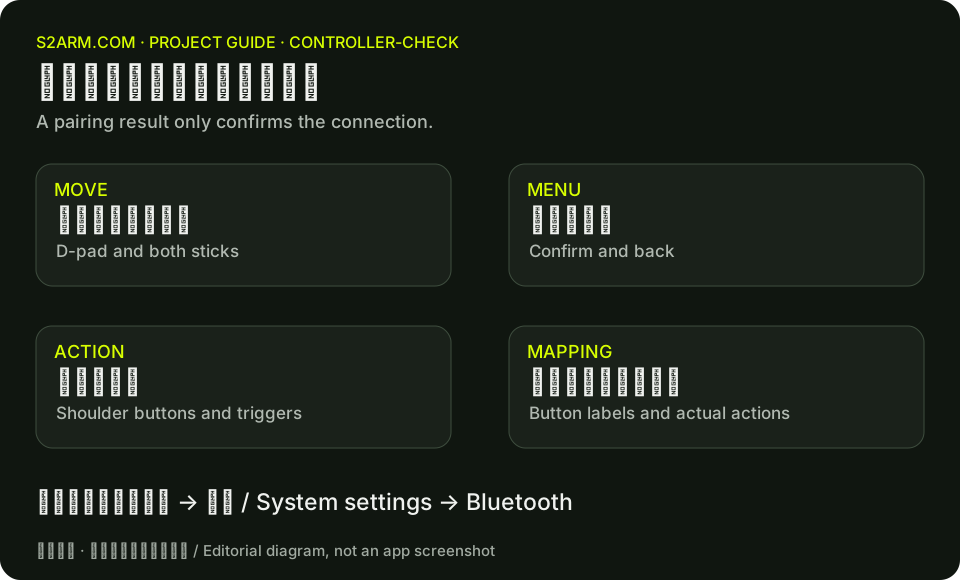
The S2Arm FAQ mentions Xbox, PlayStation and Switch Pro families, without a model-by-model tested recommendation list. The options below distinguish those upstream mentions from compatibility documented by Apple and 8BitDo. System recognition does not establish support for every feature in an S2Arm game. This site has not independently tested these models.
- Xbox Series X / S controllers. Xbox is a family mentioned in the S2Arm FAQ, and Apple explicitly lists Series X and Series S controllers for Bluetooth pairing. Follow Apple’s pairing steps, then check the in-game mapping.
- PS5 DualSense, DualSense Edge and PS4 DualShock 4. PlayStation is an upstream-mentioned family, and Apple documents these specific models. This does not establish S2Arm support for adaptive triggers or vibration.
- Original Switch Pro. The upstream FAQ mentions this family, and release notes document button-mapping fixes. Its connection path differs from Switch 2 Pro. See the physical-test limitations for those fixes below.
- 8BitDo Pro 2 Bluetooth. The manufacturer lists iOS / iPadOS 16.3 or macOS 13.2 as the minimum. Check the exact model, firmware and connection mode before buying. This is vendor compatibility information, not an S2Arm test result.
- 8BitDo Ultimate Mobile Gaming Controller. The manufacturer lists Bluetooth support for this mobile controller and its Xbox edition starting at iOS / iPadOS 18.5 and macOS 15.5. Do not confuse them with Ultimate 2 Wireless or Pro 3, which require Apple OS version 26, or infer 2.4 GHz receiver support from Bluetooth compatibility.
Enable Switch 2 Pro separately
The upstream Switch2Pro module documents an iPhone / iPad setting that is off by default and configured per game app. Open system Settings → Apps → the game, enable Switch2Pro adaptation, return to the game and tap connect, then hold the controller’s top SYNC button.
Do not apply this procedure to the original Switch Pro or treat it as a guarantee for every device and game. Module tests do not replace physical-controller validation. Check buttons, sticks and the features you need after connecting.
Buying checks for mobile and Mac
Choose for the device that will run the game. Preparing a package on Windows does not mean a controller connected to that PC can control a game running on an Apple device. The desktop guidance here is primarily for playing on a Mac.
- Mobile play. For a telescopic controller, check phone dimensions, case clearance and camera clearance. For wired models, distinguish USB-C from Lightning and confirm support for your iPhone. For Bluetooth models, check iOS requirements and how the phone is held.
- Mac play. Confirm that the manufacturer supports macOS and your intended Bluetooth, wired or receiver mode. A “PC compatible” label does not establish macOS support, and a USB receiver may not work on a Mac.
- Check motion and vibration separately if you need them. The FAQ on 8BitDo’s Apple page currently says vibration and motion controls are unsupported. A built-in gyroscope does not establish working motion controls in S2Arm. Test needed features in a safe, pausable scene before relying on them.
Check Nintendo controller button labels
The upstream v0.1.3 notes describe a Mac Switch Pro A/B and X/Y mapping fix; v0.1.4 describes the corresponding iPhone and iPad fix. The maintainers explicitly noted the lack of physical-controller tests, so these release notes are not comprehensive validation.
After updating, compare the labels and actions in the game menu. If buttons remain swapped, report the controller model, connection method, device, OS, launcher and package versions, and the action produced by each button.
Use touch buttons and hold locking
Without a physical controller, use the on-screen controls. The v0.1.4 notes describe holding ZL or ZR for two seconds to lock the input, then tapping again to unlock. Confirm that behavior in a safe or paused scene before relying on sustained input.
The main-branch touch-layout document says that losing focus, connecting a physical controller or opening settings clears the lock. Touch haptic feedback is separate from in-game or physical-controller vibration settings.
Layout features and their test scope
The main-branch touch-layout document covers layout management and button-display settings, but some checks were performed only in a standalone input workbench on an iPad mini 6. A feature in source or a layout file is not proof that every iPhone and real game has been tested.
If the installed build lacks a documented control, check the release and whether the game package needs rebuilding. Avoid replacing layouts with unknown files. A useful report includes screen orientation, the obstructed area and reproducible steps.