
1. Download the launcher for your computer
Follow the download page to the upstream release. Choose S2Arm-mac-arm64.dmg for an Apple silicon Mac, or S2Arm-windows-x64.zip for 64-bit Windows 10 or 11. The Windows launcher prepares games for Apple mobile devices; it does not run the games on Windows.
On Mac, open the DMG and drag S2Arm into Applications. On Windows, extract the entire ZIP, keep its companion files together and run S2Arm.exe. Back up saves before updating; do not replace a complete installation with only its EXE.
2. Complete the computer and device checks
Open Environment in the launcher. Preparing or rebuilding a game on Mac requires full Xcode and its Metal compiler components for both macOS and iPhone / iPad targets. iOS exports also need the iOS platform components in Xcode. Open Xcode to finish component setup, then resolve missing items in Environment. Playing an already-prepared Mac game does not require Xcode.
Keep export and installation separate: your Apple ID, signing team, device trust and Developer Mode are needed for the later iPhone / iPad installation, rather than account steps required to generate the build. Windows installation uses Apple Devices or iTunes for device detection and the bundled Impactor for signing. Complete account sign-in and system permissions yourself.

3. Import your own games and keys
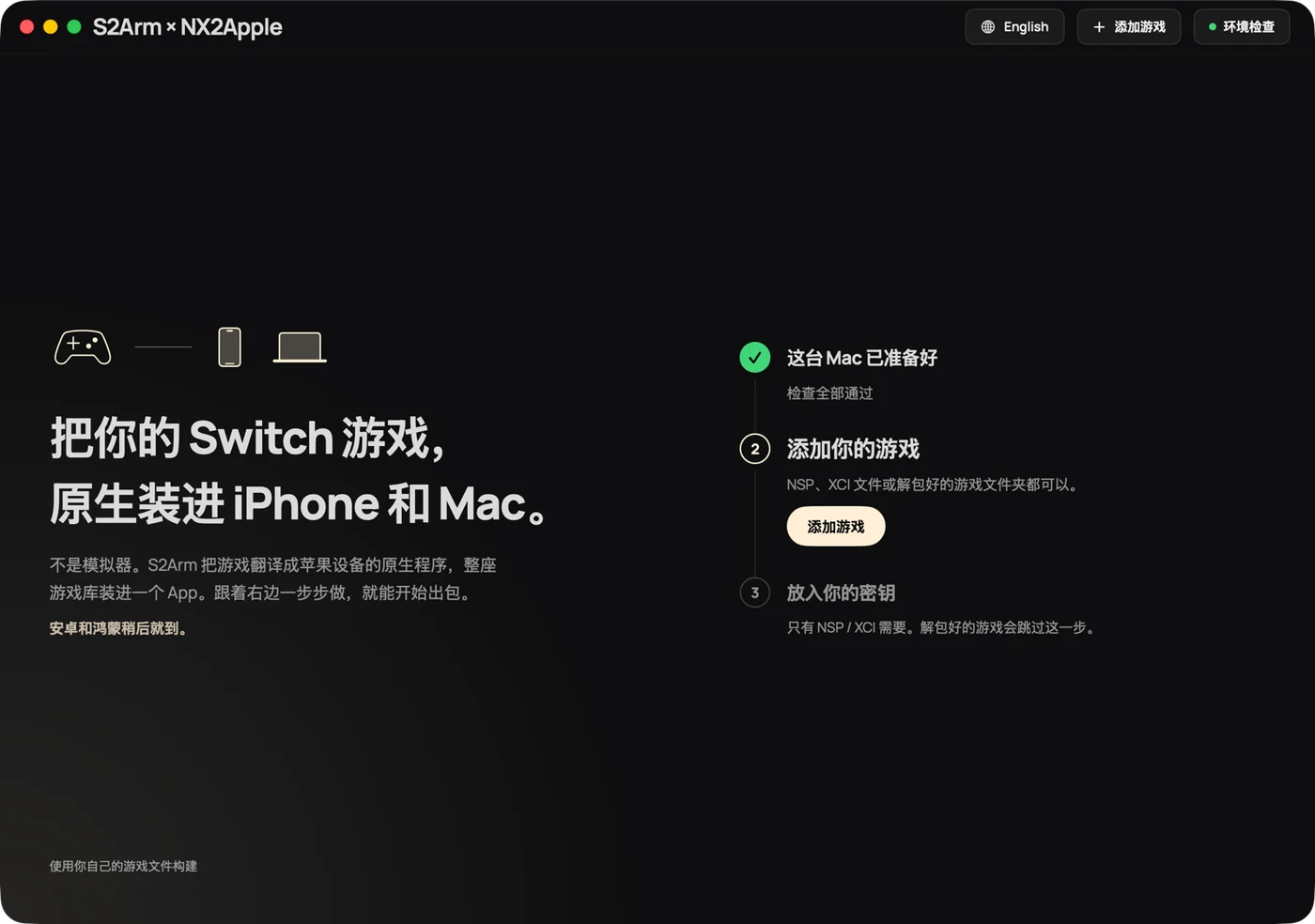
Prepare game files you are entitled to use and your own prod.keys. Import the base game, updates and DLC for one title from the same folder. Check the title, version and missing-content messages shown by the launcher. Neither this site nor the S2Arm project supplies those files.
If import reports a truncated file, missing base game, required update or outdated keys, resolve that specific issue before building. Import failures do not all mean that the key file is wrong.
4. Choose the target and build
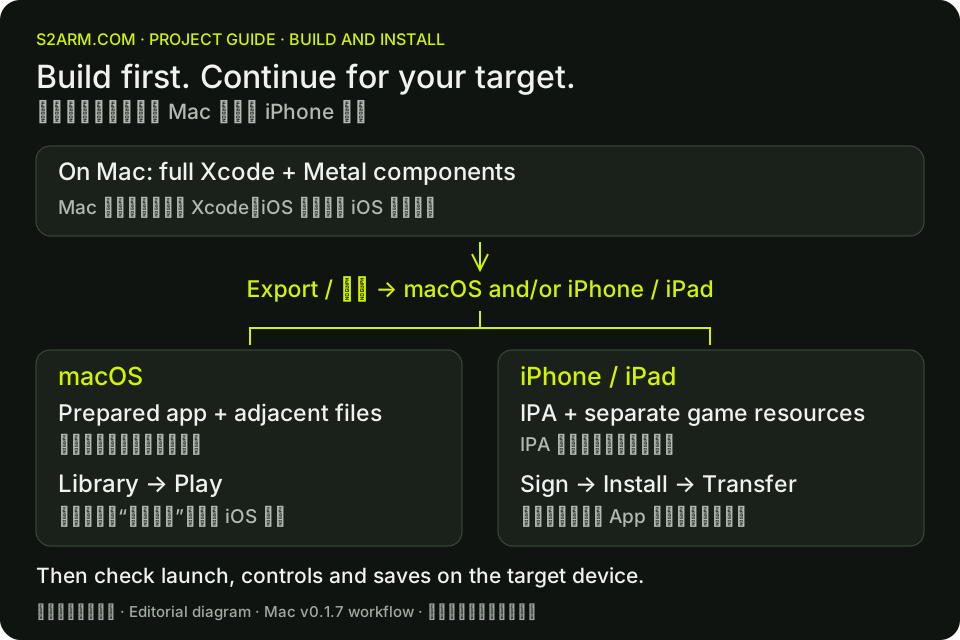
In the checked Mac release v0.1.7 (build 113), select the game and open Export. Under Export to, choose macOS, iPhone / iPad, or both platforms, then select Start export. Windows currently supports the iPhone / iPad path. Button placement may change between releases; check the selected target platform.
Keep the computer powered and watch the stage progress and storage messages. If it fails, retain the stage, error code and logs. A successful build means an artifact was produced; startup, graphics, input and gameplay still need checks on the target device.
5A. Mac: play from the library
When the macOS export finishes, return to the library, select the game and choose Play. This uses the prepared Mac build; it does not need the iPhone signing and installation process.
The generated S2ArmGame.app relies on adjacent build files and game resources. It is not a complete portable game by itself. Keep the launcher-managed library and output folders together and launch through S2Arm. Do not move only the app or clean up resources before checking the result.
5B. iPhone / iPad: sign, install and transfer resources
An iOS export produces an IPA and a separate game-resource folder. The IPA does not contain all of the game data. For the normal installation flow, return to the launcher, open Install on iPhone, and complete the Apple ID, signing-team and device checks before installing.
The launcher adds the game to the unified S2Arm app on the device, signs and installs it, then transfers and unpacks the resources separately. A per-game export IPA and the unified installation container are different artifacts. Installing only an export IPA with another signing tool does not transfer its game resources; manual sideloading is a separate route that still needs the full resource workflow.
6. Make a short first-launch check
After the Mac build or iPhone installation task finishes, launch the game for a short check. If the iPhone still needs to import resources, keep S2Arm in the foreground until it finishes. If resources are missing, return to the installation flow to transfer them rather than repeatedly reinstalling the IPA.
Check the menu, audio, controls and save behavior before a long session. The upstream v0.1.7 notes report Windows import and export checks, but not a completed end-to-end physical-device signing and installation test. Keep diagnostics if installation fails.