
Identify the failing stage first
Record the launcher version, game and version, computer and target device, OS versions and the last successful step. Keep the error code and failing stage rather than only a screenshot saying Failed.
An import failure does not establish incompatibility, and an installation failure does not show that the game cannot run. Start with the earliest explicit error. Similar symptoms at different stages can require different fixes.
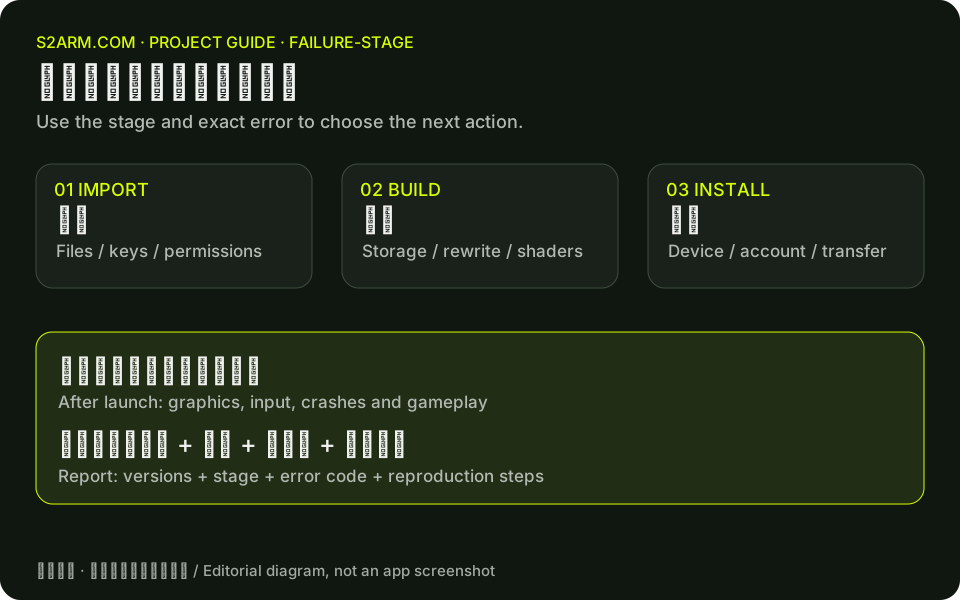
Check content and permissions during import
For a missing base game or required update, supply the corresponding content you own and import again. Truncated content and outdated keys are different faults. A guest_isa_unsupported error identifies an unsupported architecture; repeated retries do not make a 32-bit game supported.
permission_denied indicates an access problem. Check macOS file, folder or removable-volume permissions. For input_missing, first reconnect the external drive and confirm that the file remains at its original location. Do not immediately delete the library.
Keep the original build error
Confirm available space and a usable working directory, then inspect the actual rewrite, shader, compilation or packaging error. Version 0.1.7 fixes a class of Windows deep-path failures and improves compiler error reporting. Follow the release notes when retesting an older version.
Do not assume every shader-compilation failure has the same cause. The v0.1.7 notes explicitly distinguish better error reporting from fixing the original export problem. Keep the complete error and diagnostics instead of repeatedly reinstalling tools.
Include the package version for runtime problems
Runtime fixes generally require rebuilding the game app; updating the launcher alone is insufficient. Read the release notes, back up saves, rebuild and retest the same scene. Record exactly when a black screen, crash, graphics error or stutter appears.
The current release path uses direct graphics. Do not follow old beta instructions for generic or compatibility modes that have been removed. If a published test used different hardware, game content or a different build, include that difference in the report.
Export diagnostics and describe reproduction
Use the launcher’s diagnostics export or the documented s2armctl diag export command. This website’s report tool only assembles text in your browser. It does not read device logs or automatically submit a GitHub issue.
Describe the starting screen, actions, expected outcome and actual outcome. Review logs, screenshots and video for personal information before sharing. Do not attach keys, game files or save contents. Report software faults through GitHub Issues following the project guidelines so maintainers can reproduce and investigate them.